OIC Gen3 Libraries
Why Libraries Matter in OIC
In my prior blogs, I have talked about Adapters, Connections, building a Hello World Integration, and Lookups. Now let's talk about a situation that happens in practically every project now. You need to write some business logic that the mapper can't readily handle, and you need to apply that logic in more than one integration.
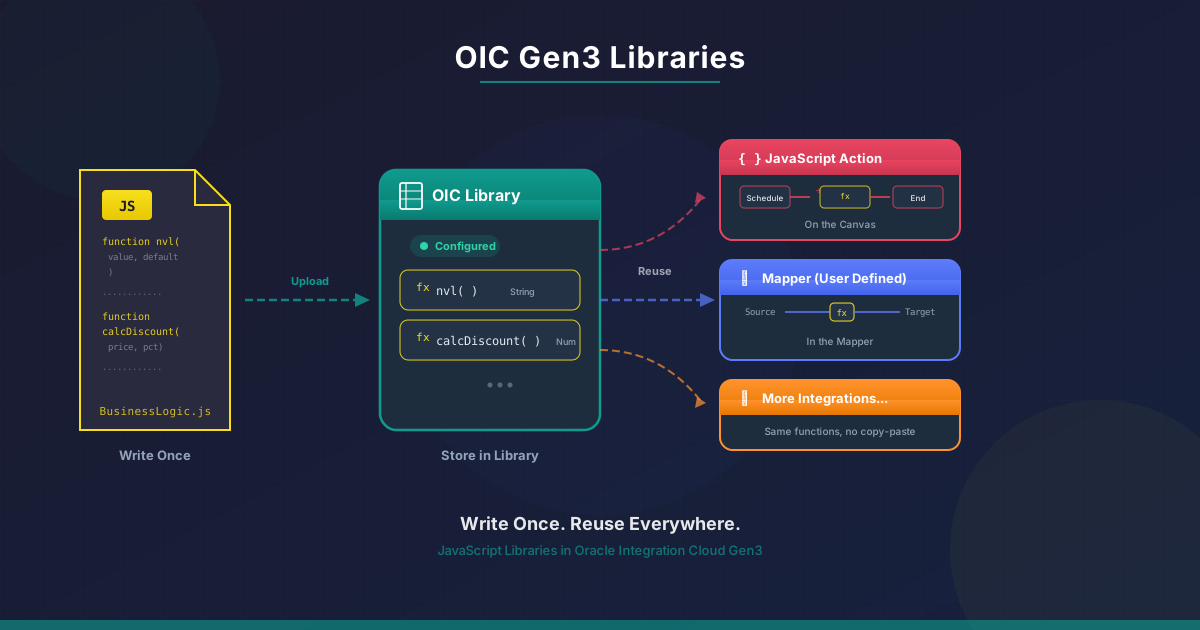
For example, converting a timestamp from one timezone to another. Or writing an NVL like function that returns a default value when a field is null. Or calculating a discount based on pricing rules. These are things you can do in JavaScript, and OIC lets you store that JavaScript in a Library so you can call it from any integration.
I have seen teams replicate the identical logic into ten or fifteen integrations when there are no libraries. One day, the logic changes, and now they are changing every single integration, turning each one off and on again, and hoping that nothing fails in production. This is when libraries come in to the picture. You only have to write the function once, upload it, and then call it whenever you need to. You only have to alter it in one place when the logic changes. You update the library and reactivate the integrations that use it. I still do not like the part where we have to reactivate the integration to reflect the changes made in the library code. I hope Oracle gives us this option some day to make changes without the need to reactivate the integration or a button to reactivate the integrations using this library function. For now, having a code in the library is still far better than opening each integration, editing the logic inside, and reactivating them one by one.
I covered Libraries briefly in the OIC Gen3 Overview. Now let's go deeper and build one from scratch.
Step 1: Write Your JavaScript File
First, open a text editor on your computer. You can use Notepad++, Visual Studio Code, or any other editor that you like.
Let's make two functions that I think are helpful in practically all projects. The first one is similar to NVL. It returns a default value instead if a field is null or empty:
function nvl(value, defaultValue) {
  if (!value || value.length === 0) {
    return defaultValue;
  }
  var retValue = value;
  return retValue;
}
The second one calculates a discount. When you are connecting pricing data between Oracle ERP Cloud and a billing system, this happens a lot:
function calculateDiscount(price, percentage) {
  var retValue = price - (price * (percentage / 100));
  return retValue;
}
One important thing to note here. Always assign your return value to a named variable likeretValuebefore returning it. OIC uses this named variable to auto-detect your output parameter. If you return an expression directly likereturn price - (price * (percentage / 100));, OIC will not detect the output parameter and you will see an error icon next to the function name.
You can put as many functions as you wish in the same file. Put a .js at the end of the file name. For instance, VGBusinessLogic.js.
Step 2: Create the Library in OIC
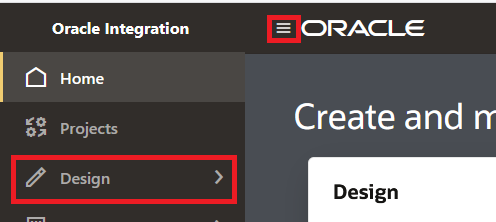
- Open the OIC console and click the navigation menu (☰) at the top left.
- Navigate to ☰ > Design.
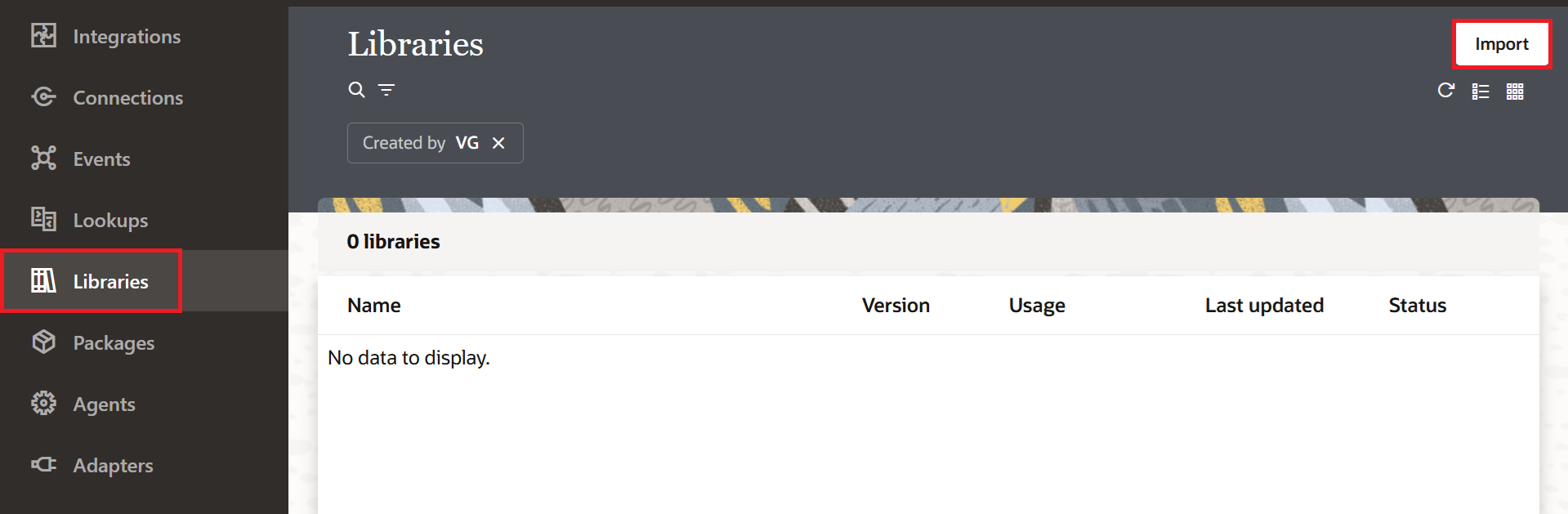
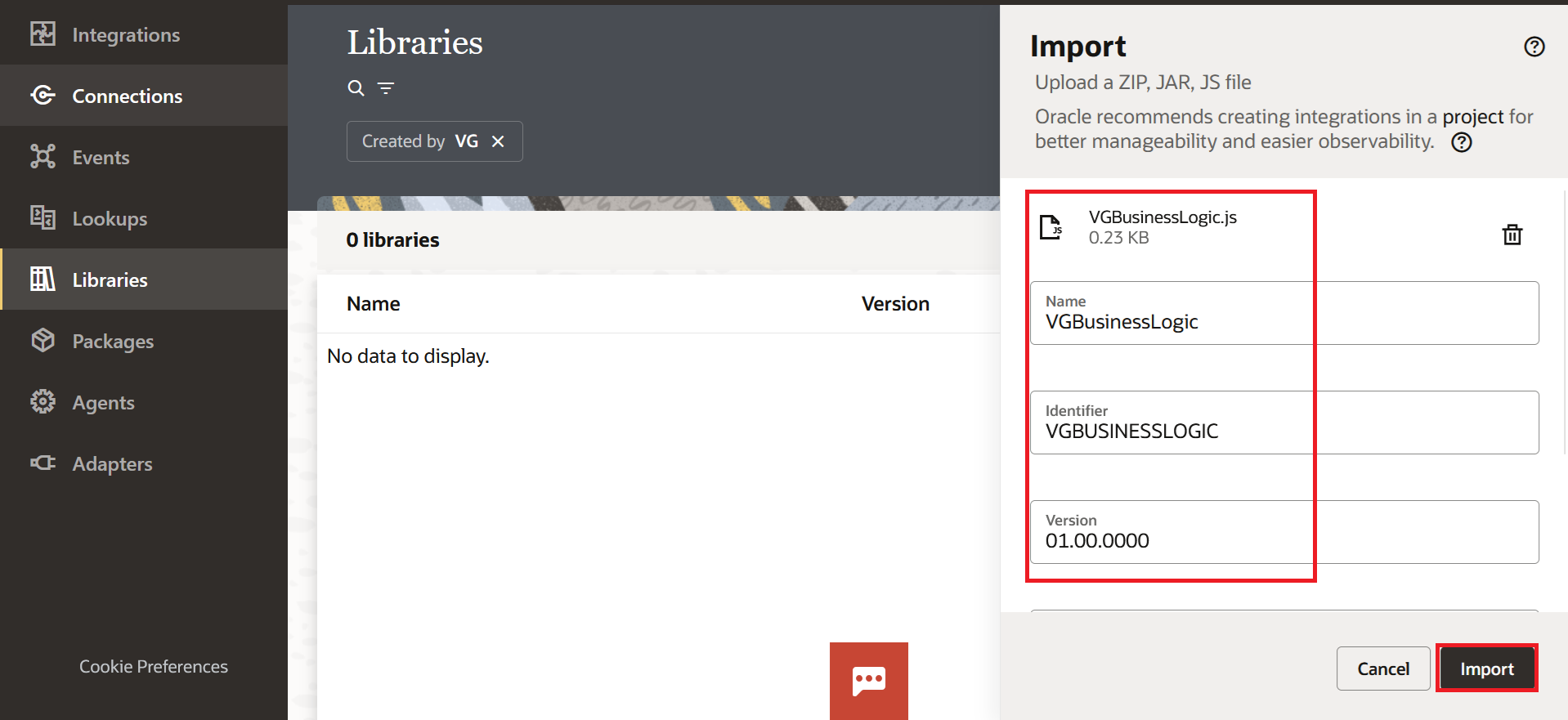
- Click "Libraries" and then "Import" button in the top right corner.
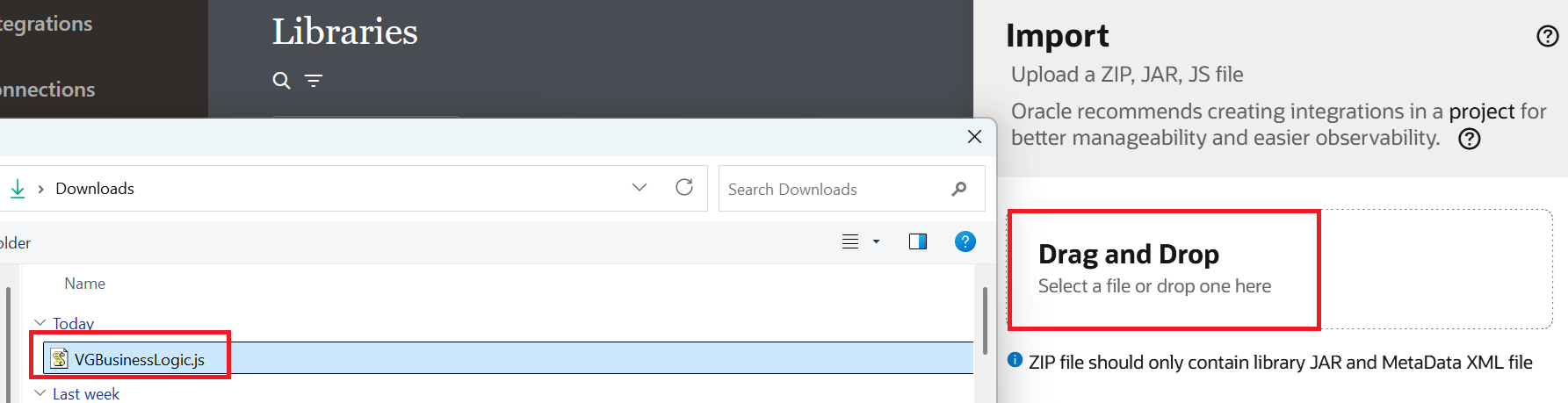
- Click Drag and Drop and choose the
.jsfile you created in Step 1.
- All the details are auto-populated. We can keep it as-is for now. Click Import.
OIC reads the file and detects the functions inside it.
Step 3: Configure Input and Output Types
Once you submit the file, OIC will show you a list of the functions it found. But they're not ready to be used yet. You need to verify and set the data types for the input and output parameters of each function.
- Check the checkbox next to the function name. This will display the Input and Output parameters that OIC auto-detected from your JavaScript code.
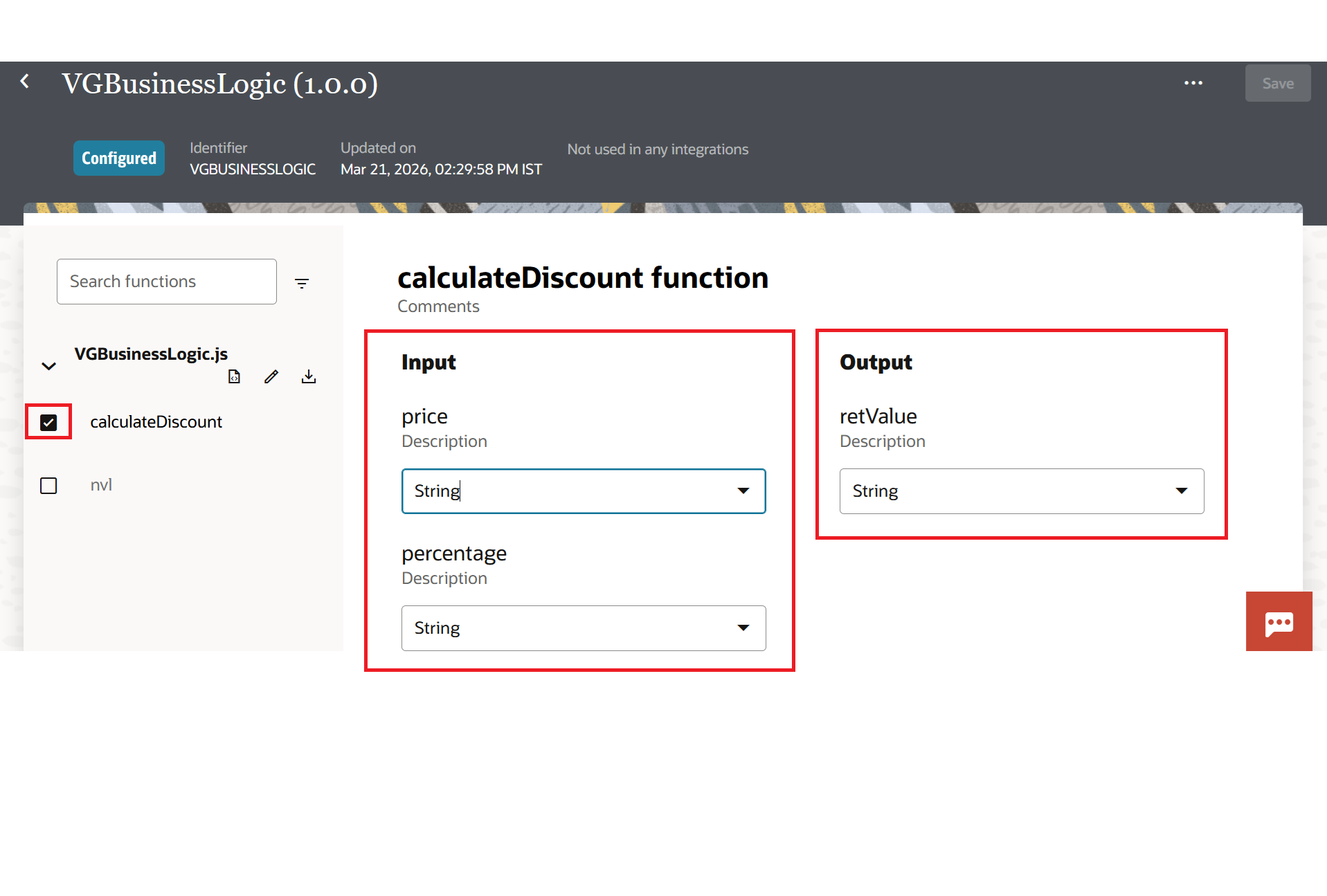
- You do not have to manually add the parameters. OIC picks them up automatically from your code. For our
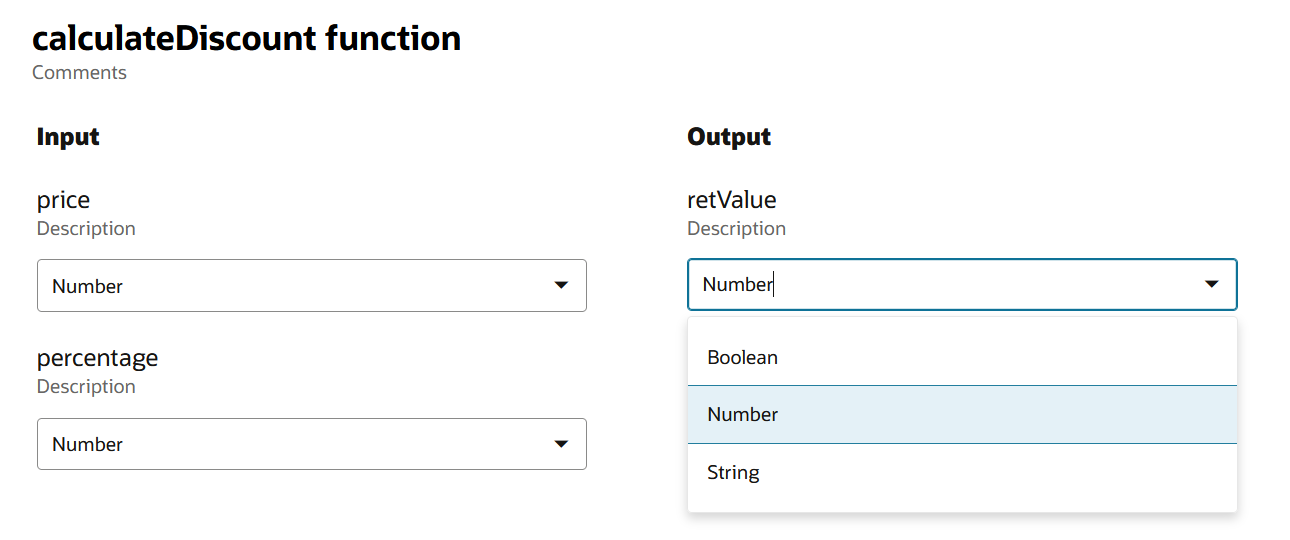
calculateDiscountfunction, you will seepriceandpercentageunder Input andretValueunder Output. Set the data types for each one. Setpriceandpercentageas Numbers and the return type as Number. Fornvl, setvalueanddefaultValueas Strings and the return type as String. OIC supports three data types for library function parameters: String, Number, and Boolean.
- Click Save.
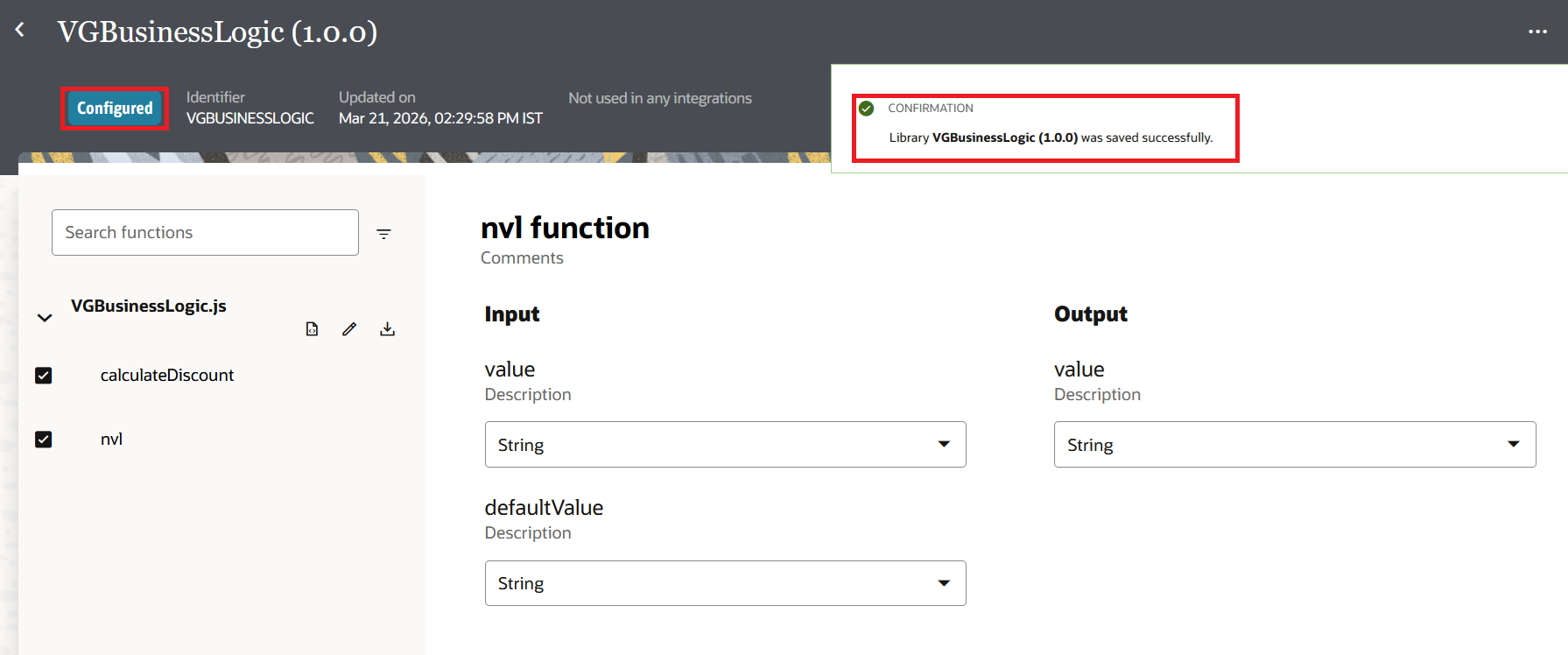
Once the library status changes to Configured, the functions are available to integrations.
Step 4: Use the Library in an Integration
Now let's use the library as part of an integration. There are two ways we can use JavaScript. We can use JavaScript Action in the Integration or we can use it inside the mapper.
Part 1: Using the JavaScript Action
This approach is useful when you want to call the library function as a standalone step on the integration canvas. For example, in a Scheduled integration where you want to process data using your library functions.
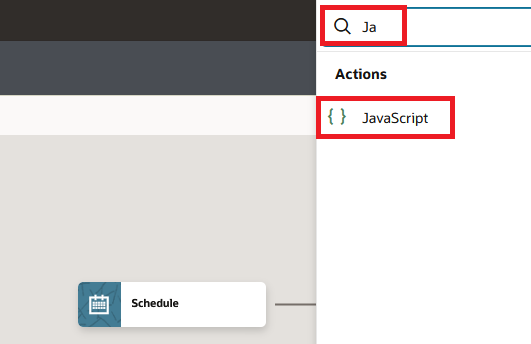
- On the integration canvas, click the + icon where the logic should happen. Search for JavaScript and select it under Actions.
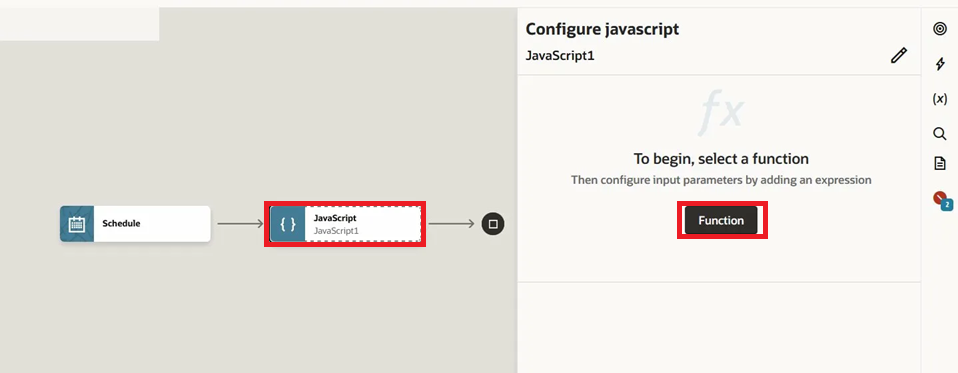
- The JavaScript action gets added to the canvas. On the right side, you will see the Configure javascript panel with a Function button. Click the Function button.
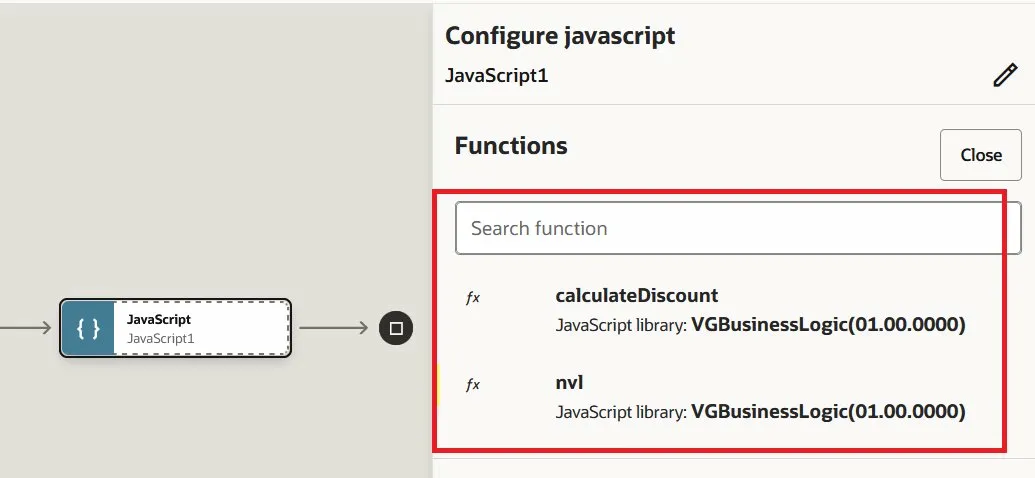
- OIC displays a list of all the functions available from your configured libraries. You will see
calculateDiscountandnvllisted under the VGBusinessLogic library. Select the function you want to use.
- For
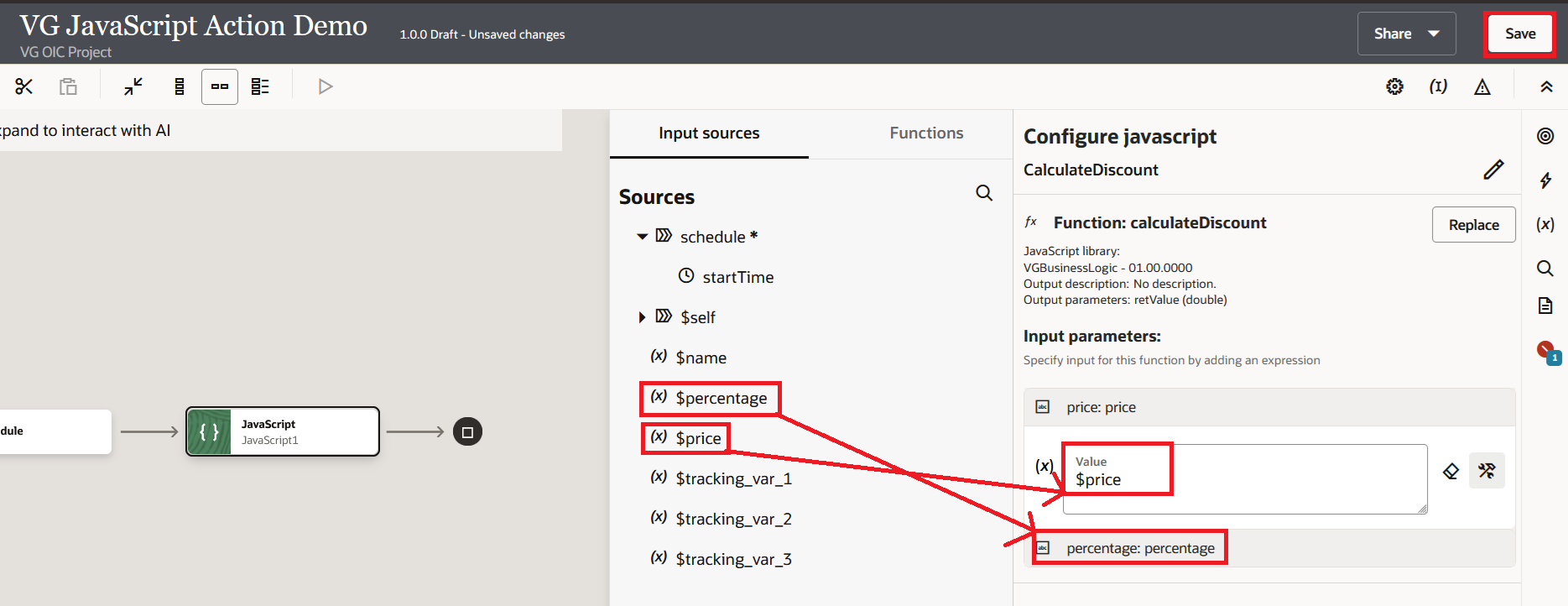
calculateDiscount, after selecting the function, the right panel shows the function details including the library name, output parameters, and input parameters. Drag$pricefrom the Sources panel on the left into thepriceinput parameter. Drag$percentageinto thepercentageinput parameter. Click Save.
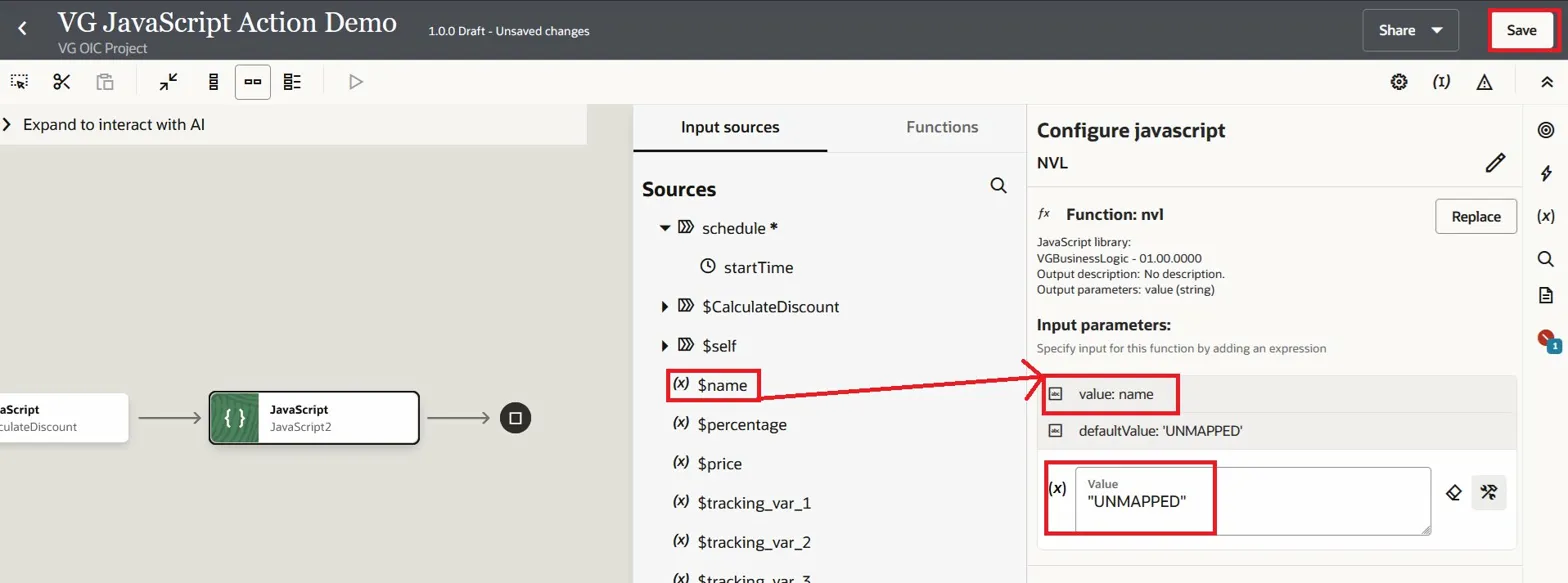
- For
nvl, add another JavaScript action on the canvas. Select thenvlfunction. Drag$namefrom the Sources panel into thevalueinput parameter. FordefaultValue, type"UNMAPPED"directly in the Value field. Click Save.
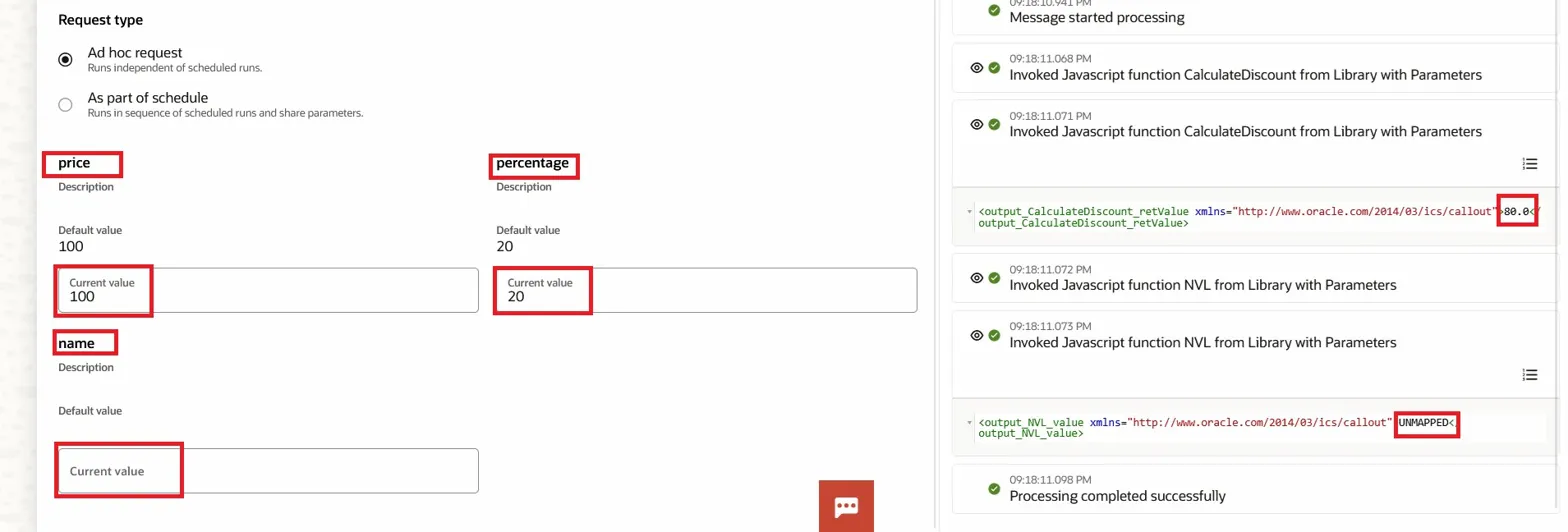
To test this, activate the integration and run it with price as 100, percentage as 20, and leave name empty. The activity stream on the right shows the execution flow. You will see "Invoked Javascript function CalculateDiscount from Library with Parameters" and the output XML showing retValue as 80.0. That is 100 minus 20% of 100. For the NVL function, since name was left empty, the output shows UNMAPPED.
Part 2: Use the Library Function in the Mapper
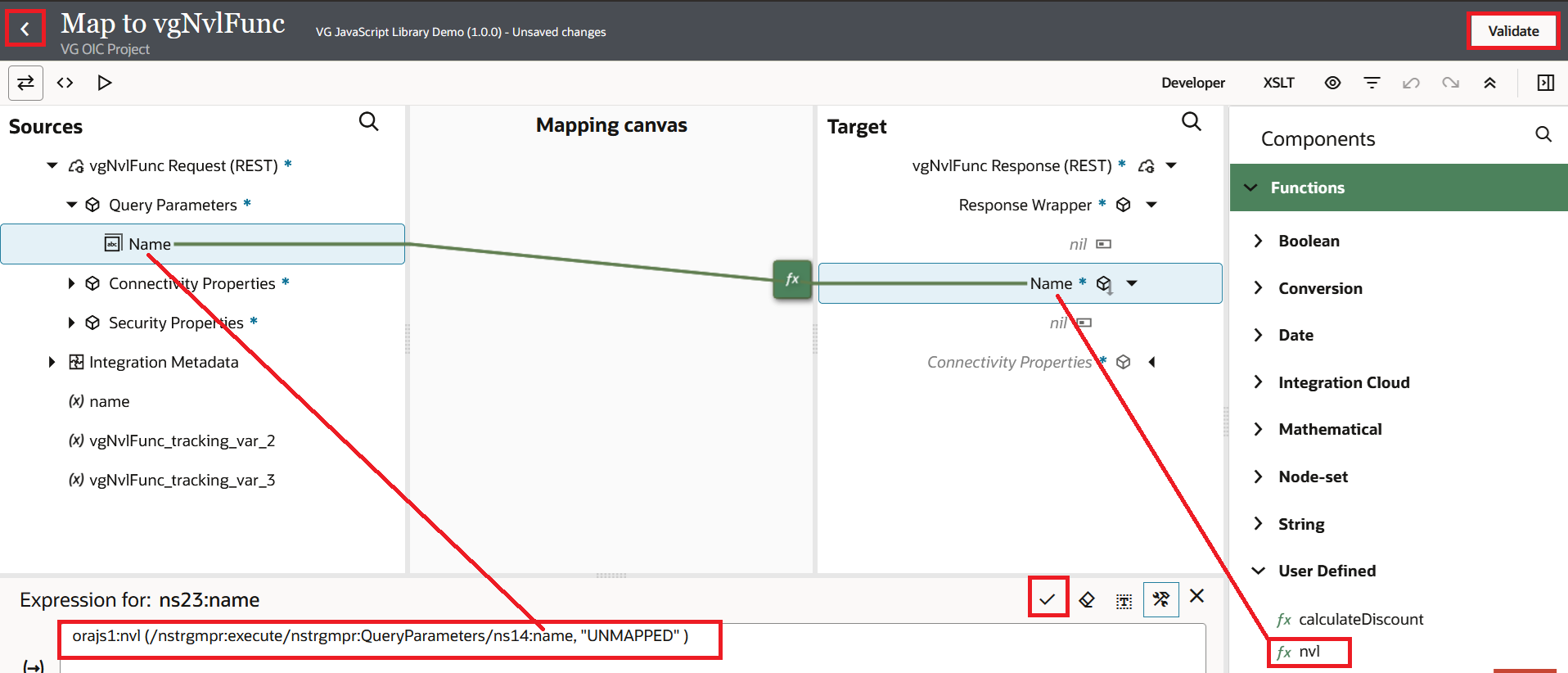
Once the library is configured, the functions become available in the mapper under User Defined functions. This works the same way as the lookupValue function we used in the Lookups blog.
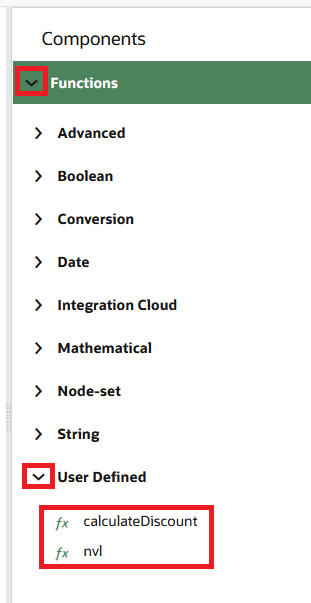
Open the mapper in your integration and click the expand icon. On the right side, expand Components > Functions > User Defined. You will see your library functions listed there, calculateDiscount and nvl.
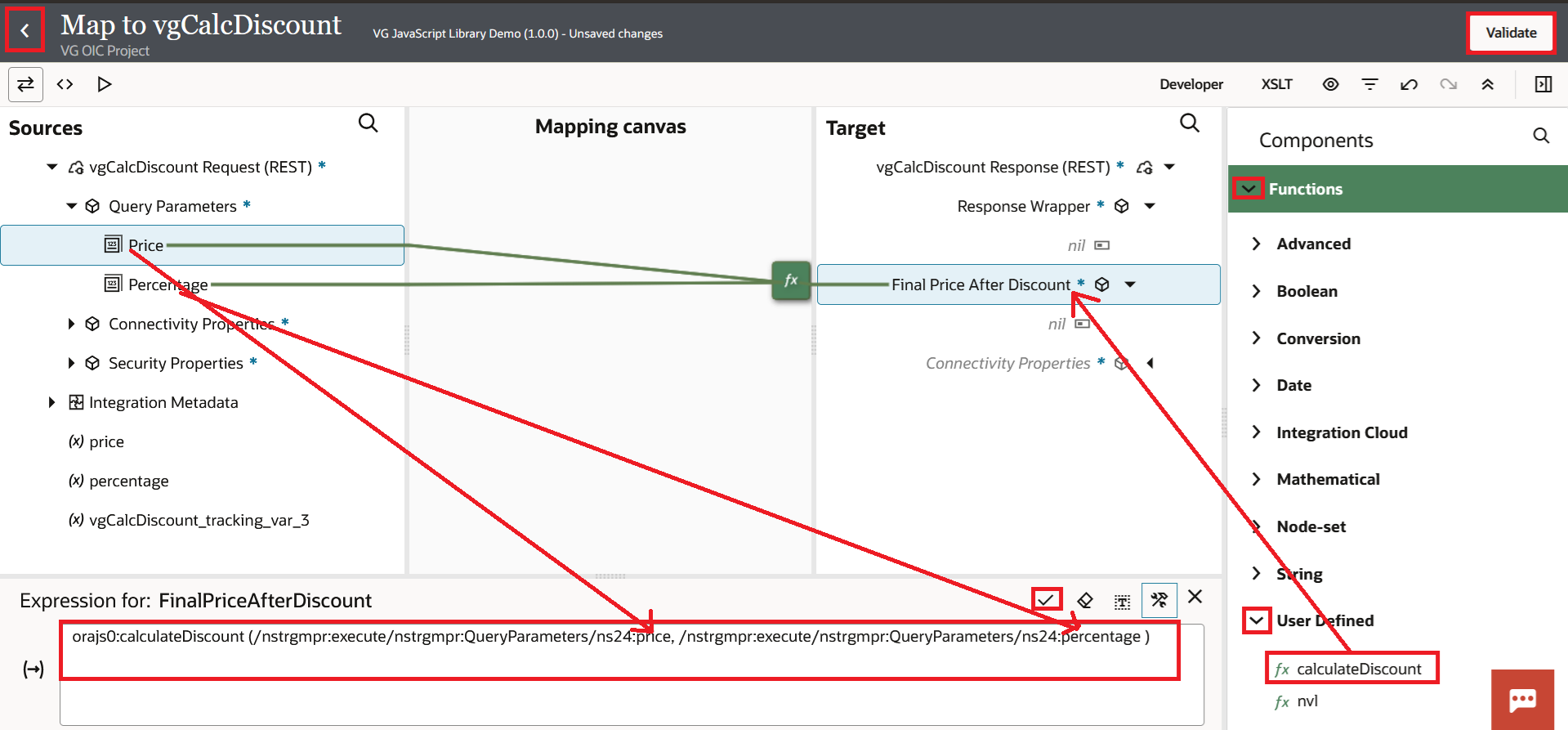
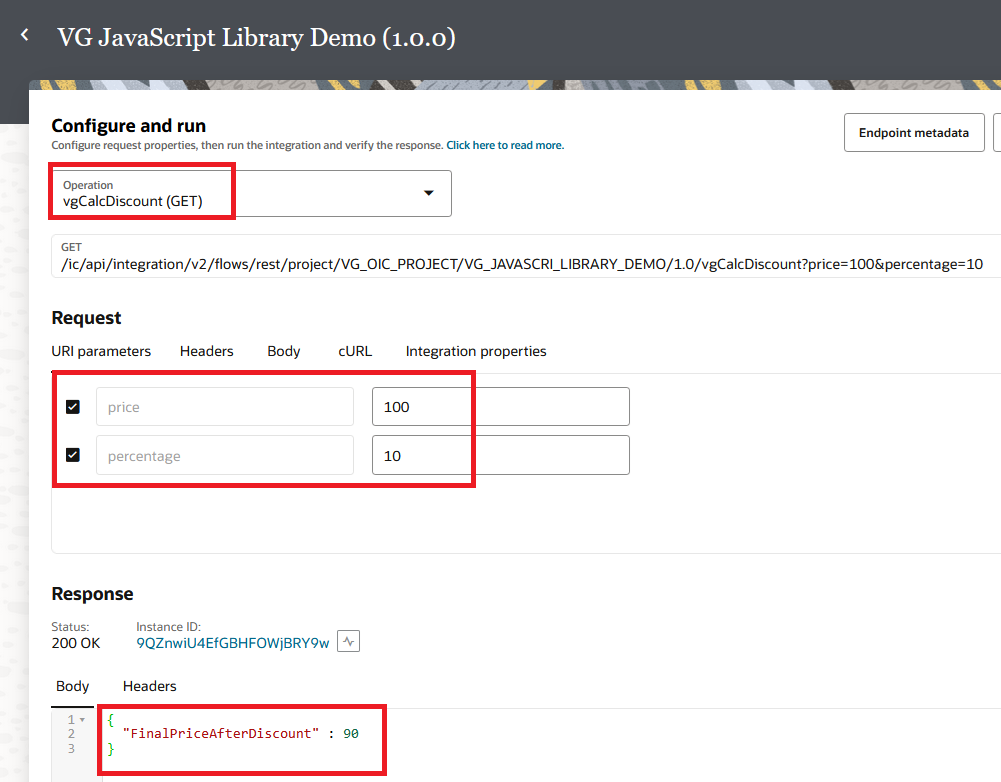
For the calculateDiscount function, drag it from the User Defined section and drop it onto the target field, for example "Final Price After Discount". Then drag the source fields from the left panel into the function parameters. Drag "Price" into the first parameter and "Percentage" into the second parameter. The expression at the bottom will show something like:
orajs0:calculateDiscount (/nstrgmpr:execute/nstrgmpr:QueryParameters/ns24:price, /nstrgmpr:execute/nstrgmpr:QueryParameters/ns24:percentage )Click the Check icon, then Validate, and click Back.
Below is the sample request and response for calculateDiscount function when we Activate and Run the integration for Calculate Discount:
For the nvl function, drag it onto the target "Name" field. Drag the source "Name" field into the first parameter. For the second parameter, type a default value like "UNMAPPED" directly into the expression. The expression will look like:
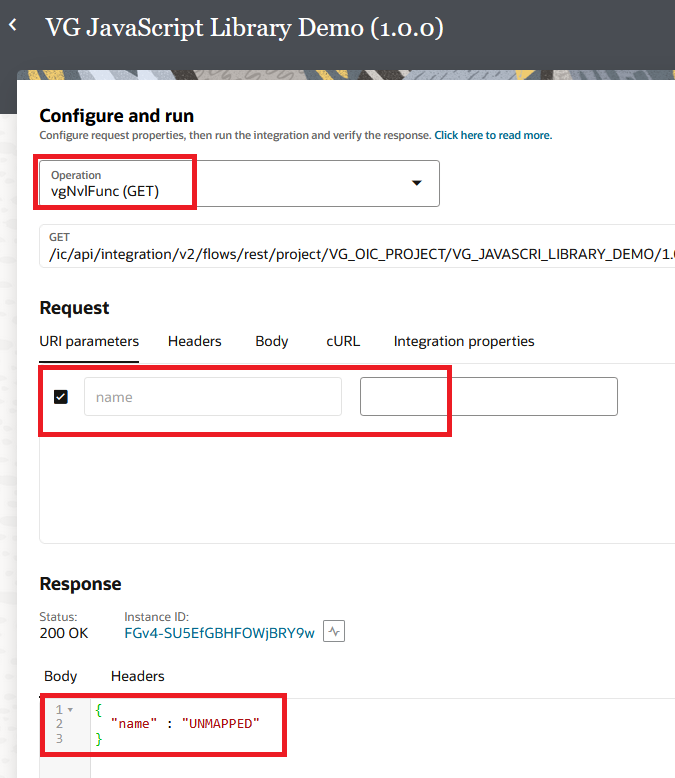
orajs1:nvl (/nstrgmpr:execute/nstrgmpr:QueryParameters/ns14:name, "UNMAPPED" )Click the Check icon, then Validate, and click Back.
Below is the sample request and response for nvl function when we Activate and Run the integration:
Some Things to Keep in Mind
When you update a library, active integrations that use the updated functions must be reactivated. Unlike Lookups, the change does not get picked up automatically on the next run. But be careful. If you add a problem to that library and ten integrations depend on it, all ten will stop working. Before I update a library that many integrations use, I always test the function exhaustively.
JavaScript actions in OIC have a 15 second timeout.
If your function takes longer than that, the integration fails. Also, you cannot make outbound calls to external services from a JavaScript function. Network, disk access, and thread access are not supported either.
OIC's JavaScript engine is not a full browser or Node.js runtime. You can't always rely on ES6 features like let and const, arrow functions, or template literals. Use var, conventional function declarations, and string concatenation.
You can obtain surprising results in the mapping if you register a function as producing a Number but your JavaScript actually returns a String. Always check that the signature you registered matches what the function really returns.
Keep your attention on your libraries. I have seen teams develop one enormous library that had thirty different functions. That makes it hard to keep up with. Separate functions that work with each other into independent libraries and files. PROJ_PaymentMath, PROJ_DateUtils, and PROJ_StringUtils. You want to know exactly which library to go to when something goes wrong at 11 PM on a Friday.
Closing Thoughts
Libraries are one of those things that don't appear relevant until you have to replicate the same JavaScript code into your fifth integration. It's easy for me to give you advice. If you write your logic more than twice, stop and move it to a library. Give it a good name. Keep the functions on track. And always test before you change a library that production integrations depend on. Setting it up will only take a few minutes, but it can save you hours when you get a change request.
References
- Oracle Integration 3, Using Libraries in Integrations: https://docs.oracle.com/en/cloud/paas/application-integration/integrations-user/use-libraries-manage-functions-integrations.html
- Oracle Integration 3, Update JavaScript Files: https://docs.oracle.com/en/cloud/paas/application-integration/integrations-user/update-javascript-files.html
- Oracle Integration 3, Add JavaScript Functions to an Integration: https://docs.oracle.com/en/cloud/paas/application-integration/integrations-user/add-javascript-action.html